
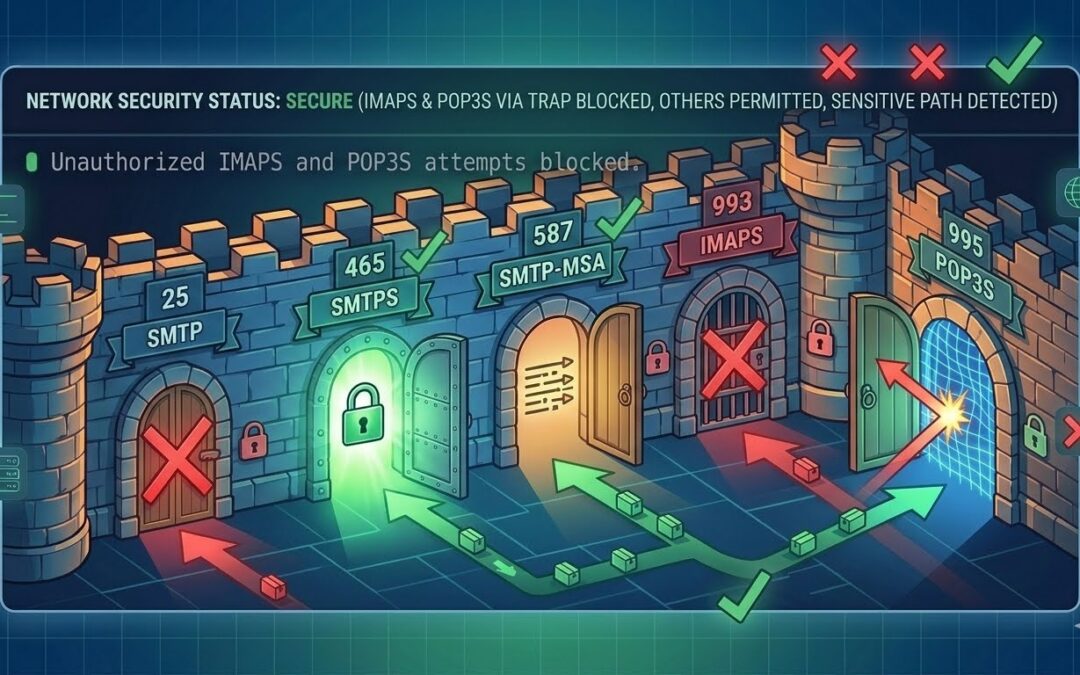
You've opened ports 465 and 587 in firewalld, but connections still fail. Learn why rich rules, zones, and service definitions matter. Fix your email server firewall once and for all.
You've run the command. You've double-checked it twice:
sudo firewall-cmd --list-ports
465/tcp 587/tcp
The ports are open. But when you try to connect from your email client or run nc -zv mail.server.com 465, you get:
Connection refused
Meanwhile, other ports like 993 (IMAPS) and 443 (HTTPS) work perfectly. What's going on?
This is one of the most confusing issues for Linux system administrators. You've done everything right, yet something is still blocking your connections.
The answer lies in understanding firewalld zones, rich rules, and service definitions. Simply adding a port isn't enough when other rules take precedence.
In this guide, I'll demystify firewalld and show you exactly why your "open" ports are still blocked—and how to fix it permanently.
Understanding Firewalld Architecture
Firewalld uses multiple layers of rules. Think of it like airport security:
| Layer | Firewalld Equivalent | Priority |
|---|---|---|
| Boarding pass check | Rich rules | Highest |
| ID check | Zone policies | Medium |
| Baggage scan | Service definitions | Lower |
Even if you have a valid boarding pass (open port), a rich rule can still reject you.
Key Concepts
| Concept | Description | Example |
|---|---|---|
| Zone | A set of rules for a network interface | public, internal, trusted |
| Service | Predefined port/protocol combinations | smtp-submission (port 587) |
| Rich Rule | Complex conditional rules | Block specific IP ranges |
| Default Target | What happens if no rule matches | accept, reject, drop |
The Problem: How You Probably Opened Ports
Most tutorials tell you to do this:
sudo firewall-cmd --permanent --add-port=465/tcp
sudo firewall-cmd --permanent --add-port=587/tcp
sudo firewall-cmd --reload
This adds ports to the ports list, but rich rules or zone defaults can override them.
Diagnosing the Issue
Step 1: Check Your Active Zones
sudo firewall-cmd --get-active-zonesExample output:
public (default)
  interfaces: enp1s0
iredmail
  interfaces: enp6s0
This shows which zones are active on which network interfaces.
Step 2: List All Rules in Your Zone
sudo firewall-cmd --zone=public --list-allLook for:
services:- Aresmtp-submissionandsmtpslisted?ports:- Are 465/tcp and 587/tcp listed?rich rules:- Any reject or drop rules?
Step 3: Check Rich Rules Specifically
sudo firewall-cmd --list-rich-rulesExample of problematic rich rules:
rule family="ipv4" source address="101.13.5.0/24" drop
rule family="ipv4" source address="66.132.195.0/24" drop
These drop entire IP ranges—and they apply before your port rules.
Step 4: Examine the Low-Level Rules
sudo nft list ruleset 2>/dev/null || sudo iptables -L -nThis shows the actual firewall rules being enforced.
The Fix: Proper Firewall Configuration
Solution 1: Use Services Instead of Ports (Recommended)
Remove the raw port definitions and use proper services:
# Remove raw ports
sudo firewall-cmd --permanent --remove-port=465/tcp
sudo firewall-cmd --permanent --remove-port=587/tcp

# Add proper services
sudo firewall-cmd --permanent --add-service=smtp-submission
sudo firewall-cmd --permanent --add-service=smtps

# Reload
sudo firewall-cmd --reload
Solution 2: Check What Services Actually Do
# View service definitions
sudo firewall-cmd --info-service=smtp-submission
sudo firewall-cmd --info-service=smtps
Expected output for smtp-submission:
smtp-submission
  ports: 587/tcp
  protocols:
  source-ports:
  modules:
  destination:
Solution 3: Add Your IP to Trusted Zone (Temporary)
For testing or if you have a static IP:
sudo firewall-cmd --permanent --zone=trusted --add-source=YOUR_IP_ADDRESS
sudo firewall-cmd --reload
Solution 4: Create a Custom Zone for Mail Services
# Create a dedicated mail zone
sudo firewall-cmd --permanent --new-zone=mail

# Add mail services
sudo firewall-cmd --permanent --zone=mail --add-service=smtp
sudo firewall-cmd --permanent --zone=mail --add-service=smtp-submission
sudo firewall-cmd --permanent --zone=mail --add-service=smtps
sudo firewall-cmd --permanent --zone=mail --add-service=imaps
sudo firewall-cmd --permanent --zone=mail --add-service=pop3s

# Assign your interface to this zone
sudo firewall-cmd --permanent --zone=mail --change-interface=enp1s0

# Reload
sudo firewall-cmd --reload
Solution 5: Remove Conflicting Rich Rules
If rich rules are blocking legitimate traffic:
# List all rich rules
sudo firewall-cmd --list-rich-rules

# Remove a specific rich rule (copy exactly from list)
sudo firewall-cmd --permanent --remove-rich-rule='rule family="ipv4" source address="101.13.5.0/24" drop'

# Reload
sudo firewall-cmd --reload
Understanding iRedMail's Default Firewall Zones
iRedMail often creates multiple zones:
| Zone | Purpose | Typical Interfaces |
|---|---|---|
public | External traffic | enp1s0 (WAN) |
iredmail | Mail services | enp6s0 (internal) |
trusted | Trusted IPs | Sources list |
Your email ports might only be open in the iredmail zone, not public.
Check all zones:
for zone in $(sudo firewall-cmd --get-zones); do
    echo "=== Zone: $zone ==="
    sudo firewall-cmd --zone=$zone --list-all
done
Testing Your Fix
Test 1: Local Port Check
sudo ss -tlnp | grep -E "465|587"Expected output:
LISTEN 0 100 0.0.0.0:465 0.0.0.0:* users:(("master",pid=xxx))
LISTEN 0 100 0.0.0.0:587 0.0.0.0:* users:(("master",pid=xxx))
Test 2: Remote Port Test (From another machine)
nc -zv mail.yourdomain.com 465
nc -zv mail.yourdomain.com 587
Expected output:
Connection to mail.yourdomain.com port 465 [tcp/urd] succeeded!
Connection to mail.yourdomain.com port 587 [tcp/submission] succeeded!
Test 3: Full SMTP Test
openssl s_client -connect mail.yourdomain.com:465 -crlfPrevention: Firewall Audit Script
Create a script to regularly audit your firewall:
sudo nano /usr/local/bin/firewall-audit.sh#!/bin/bash
# Firewall audit script for email servers
echo "=== Firewall Audit Report ==="
echo "Date: $(date)"
echo ""
echo "--- Active Zones ---"
sudo firewall-cmd --get-active-zones
echo ""
echo "--- Public Zone ---"
sudo firewall-cmd --zone=public --list-all
echo ""
echo "--- Required Services Check ---"
for service in smtp smtp-submission smtps imaps pop3s; do
if sudo firewall-cmd --zone=public --query-service=$service 2>/dev/null; then
echo "✅ $service"
else
echo "❌ $service MISSING"
fi
done
echo ""
echo "--- Port Accessibility Tests ---"
for port in 25 465 587 993 995; do
if ss -tlnp | grep -q ":$port "; then
echo "✅ Port $port listening"
else
echo "❌ Port $port NOT listening"
fi
doneMake it executable and run weekly:
sudo chmod +x /usr/local/bin/firewall-audit.sh
sudo crontab -e
Add: 0 9 * * 1 /usr/local/bin/firewall-audit.sh | mail -s "Firewall Audit" admin@yourdomain.com
Conclusion
Firewalld is powerful but complex. The key takeaways:
- Ports aren't enough - Rich rules and zone defaults override them
- Use services -
--add-service=smtp-submissionis better than--add-port=587/tcp - Check all zones - Your interface might be in a different zone
- Rich rules apply first - They can block traffic even when ports are open
Your email server firewall is now properly configured. Connections to ports 465 and 587 will work from anywhere, as long as users authenticate.